



In this article, you’ll learn:
You exported your catalog, fixed a few things, and re-imported the file. Now half your variants are gone, a chunk of products show zero stock, and there's no undo button anywhere in sight. If that's how you landed here, you're not alone. Browse the Shopify Community for five minutes and you'll find merchants describing the exact same thing, sometimes losing hundreds of listings' worth of work in one afternoon and warning others not to trust the CSV import feature in Shopify admin.
It might sound a bit dramatic, but the underlying warning is, indeed, fair. Shopify's CSV import is powerful and useful once you understand its rules, but the problem is that nobody tells you these rules until after you've broken something. We know the struggle, so we’ve done some research and put together this guide. Here, we covered why Shopify CSV imports delete data, the specific mistakes behind it, and how to import products to Shopify safely, whether this is your first shopify bulk product upload or your third time cleaning up after one.
How Shopify CSV import works

Two things decide almost everything that happens when you import: the shopify CSV template you're working from, and one checkbox.
The template. Go to Products → Export to download a sample product CSV, or export your existing catalog to use as a starting point (we recommend this over building one from scratch because your column headers will already match what your store expects). Every row represents one product variant. The Handle column ties multiple rows together into a single product, so every variant of the same product needs to share the same handle.
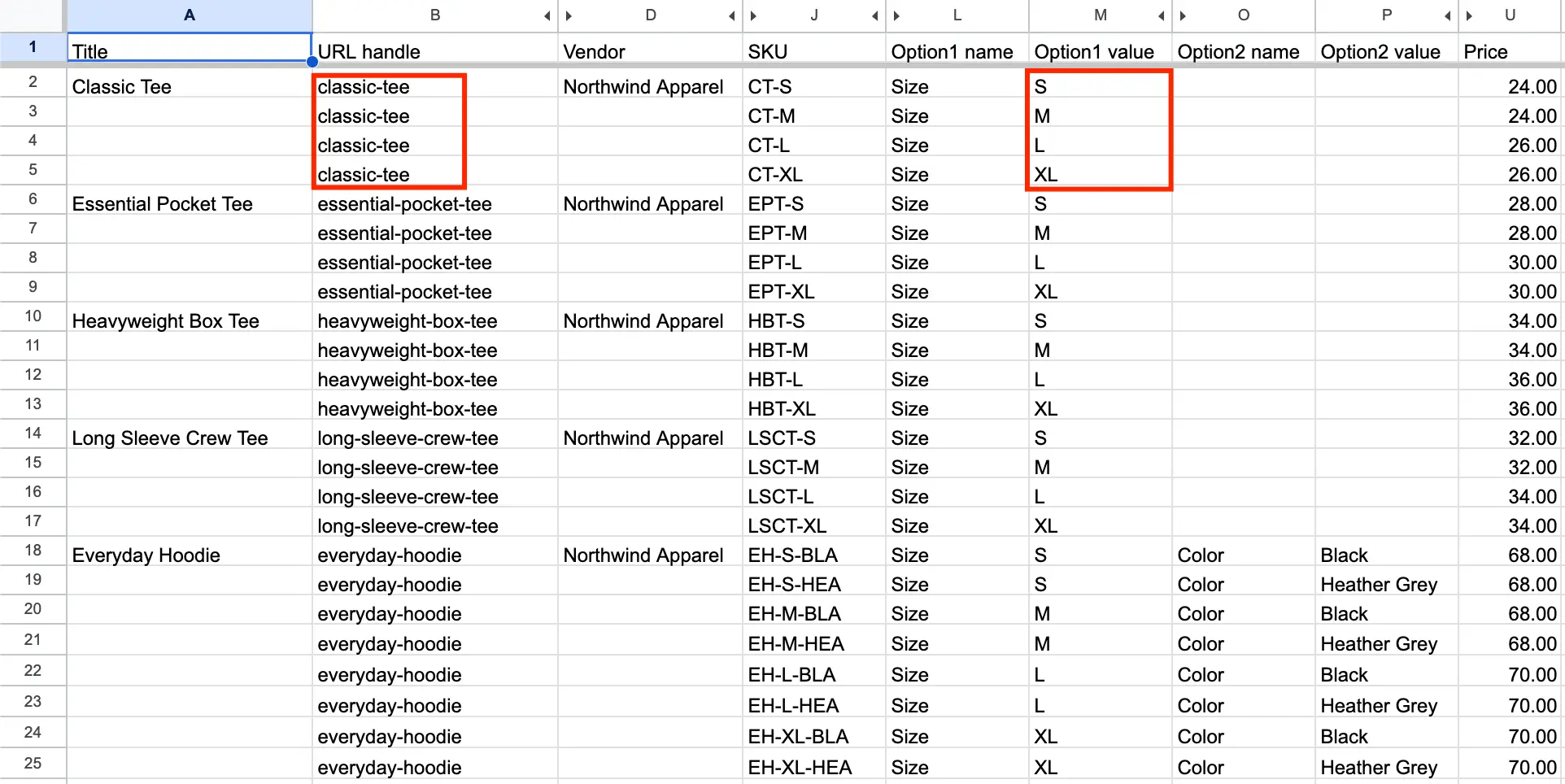
Column headers matter a lot, like, a lot. Shopify's parser is case-sensitive, so a header of "Title" is not interchangeable with "title",so a small typo here is a common reason an otherwise correct file still fails.
The Overwrite checkbox. When you upload, Shopify asks whether to select "Overwrite products with matching handles." This single setting controls almost every outcome:
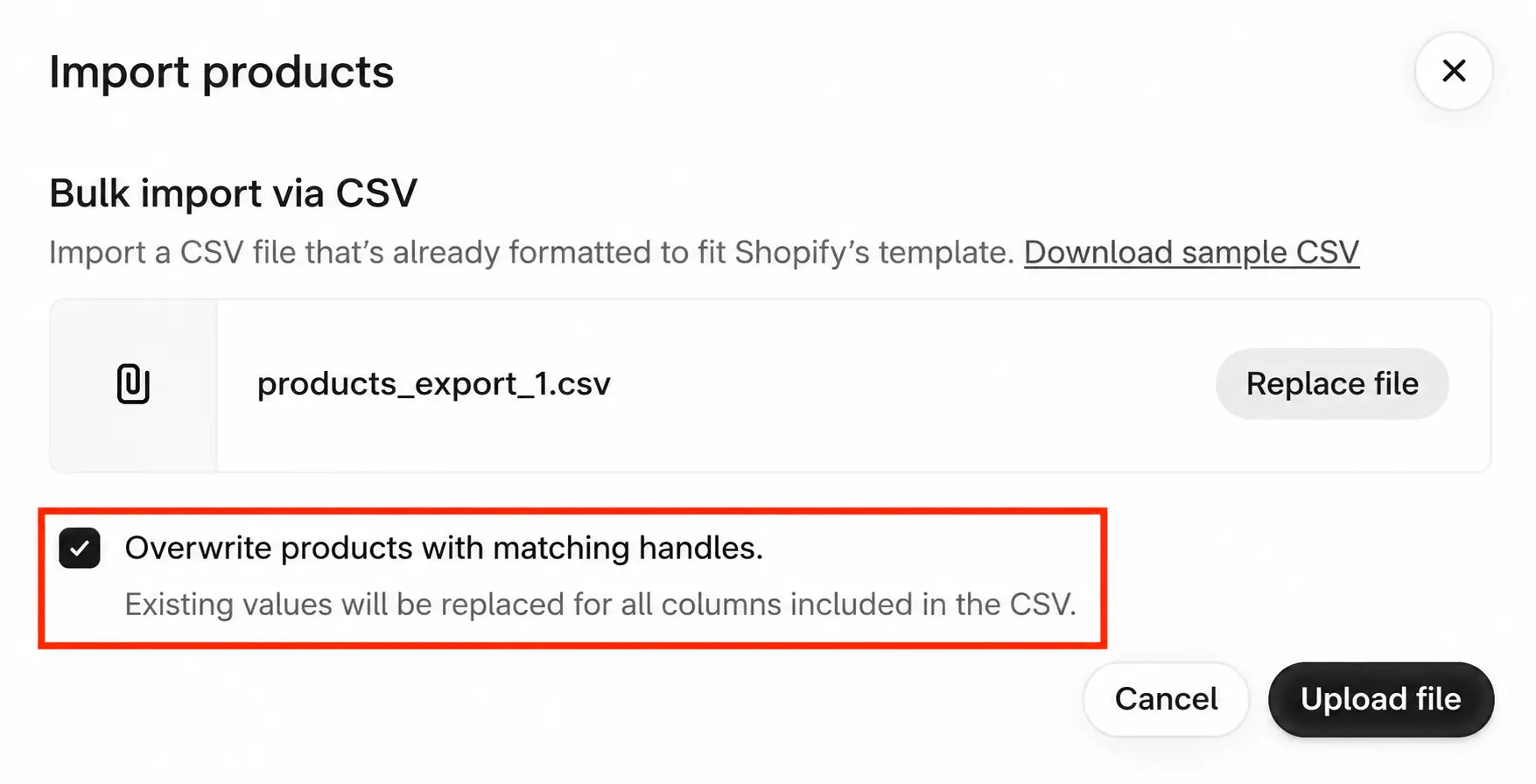
- Left unchecked: any row whose handle matches an existing product is skipped entirely. Nothing changes.
- Checked: any row whose handle matches an existing product has its values replaced by whatever's in the file, including columns that are blank.
That second behavior is where nearly every horror story starts.
7 reasons Shopify CSV imports delete your data
1. A blank cell isn't the same as a missing column
This is the single most common way people lose data, and it's annoyingly counterintuitive the first time you hit it.
- An empty column that's present in your file gets imported as blank, overwriting whatever was there before.
- A column that's left out of the file entirely is ignored, and the existing value stays untouched.
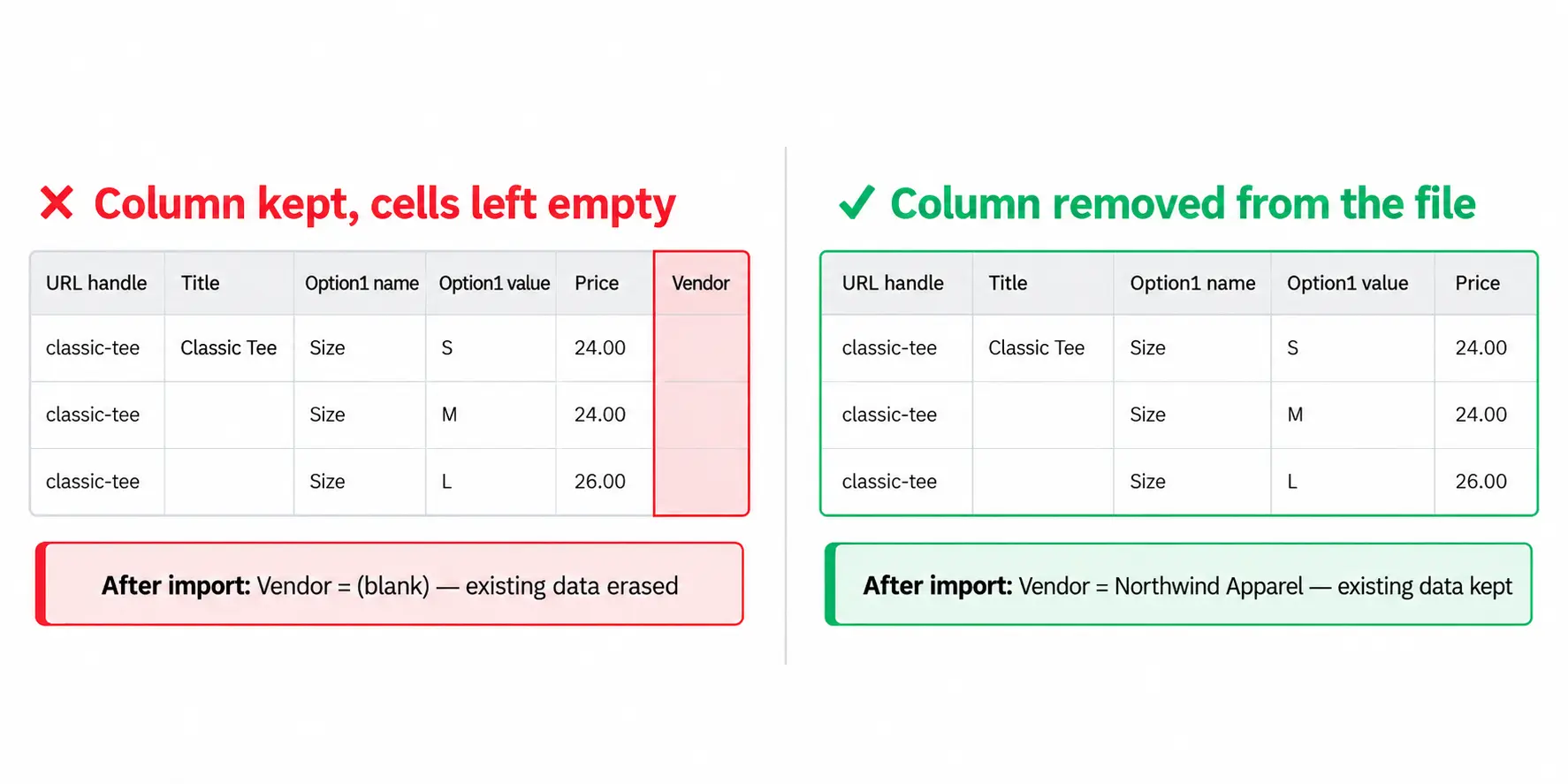
So, the conclusion here is rather simple: removing a column protects your data, and leaving the column in but clearing the cells destroys it. But that doesn't mean a bare-bones file is always safe. For example, if you're updating a variant-related column, such as price, you also need to include Option1 Name and Option1 Value (and Option2/3 Name and Value if your product uses more than one option). Say a T-shirt comes in S, M, and L. If those option columns aren't in the file, Shopify can't tell which price belongs to which size, so it creates one new default variant and deletes the three you already had. The safest file for a price update on a product with variants is Handle, Title, Option1 Name, Option1 Value, and Price, not just the first three.
2. A missing variant row means "delete this variant"
With Overwrite checked, Shopify treats your file as the complete, authoritative list of that product's variants. Any variant that existed before but isn't a row in your import gets removed. Hence the inventory, pricing, and everything attached to it is also gone.
This is exactly what happens when someone filters their spreadsheet down to "just the sizes I need to fix" and re-imports that filtered file: every size that got filtered out reads as "no longer exists" and disappears. One Community thread described losing variant-to-image links and inventory counts across roughly 800 listings this way, with no way to revert once support confirmed there was nothing they could restore.
How to avoid it: never import a partial set of a product's variants. Export the full product, edit what you need, keep every row, and re-import the whole set.
3. Changing an option value creates a new variant instead of editing the old one
Rename a color or standardize "X-Large" to "XL" in the Option1/2/3 Value columns, and Shopify doesn't read that as "same variant, corrected label". Instead, it reads it as a brand-new variant. The old one, along with its inventory and SKU history, is deleted.
How to avoid it: treat option values as fixed identifiers rather than display text you can casually clean up. Test a rename on a single product directly in the admin first, and confirm the result, before doing it across a whole file.
4. Product image URL and Variant image URL fall out of sync
Product image URL (formerly called Image Src) sets the product's images; Variant image URL (formerly called Variant Image) links a specific image to a specific variant, matched by URL or file order. It's an easy link to break, especially through a re-sorted spreadsheet, a slightly different row order than your last export, or a partial re-upload. In the end, a variant ends up pointing at no image, or someone else's.
How to avoid it: if you're not intentionally changing images, drop the Product image URL and Variant image URL columns from your file entirely rather than leaving them populated with values you assume are unchanged. An omitted column can't misalign; a re-typed one can.
5. Multi-location inventory silently doesn't import (the "0 in stock" issue)
This is the most common cause of the Shopify product import 0 in stock issue and the related Shopify product import zero stock quantity issue: the product CSV's Variant Inventory Qty column only applies to stores with a single location. If you manage more than one location, that column is ignored outright during shopify import inventory – no error, it just doesn't apply, and affected variants can show as unavailable with stock sitting right there in your file.
How to avoid it: if you're operating in more than one location, stop trying to set stock through the product CSV. Use the separate Inventory CSV (Products → Inventory → Export/Import) instead, which is built specifically to carry per-location quantities.
6. Excel quietly reformats your data
This isn’t really a Shopify bug, but it causes just as much damage. Opening a shopify product csv in Excel and saving it back can:
- Strip leading zeros from SKUs and barcodes ("00342" becomes "342")
- Re-encode special characters incorrectly if the file isn't saved as UTF-8
- Reorder rows in a way that breaks the image-to-variant alignment from point 4
How to avoid it: format ID-like columns (SKU, barcode) as text before entering data, and save as "CSV UTF-8," not plain CSV or whatever Excel defaults to.
7. Metafields have narrower support than you’s assume
Product-level metafields are supported for shopify import metafields by using the column format product.metafields.<namespace>.<key>. For example, product.metafields.shopify.fabric. Once a metafield's defined on your store, it shows up automatically in your product CSV exports.
Variant-level metafields are not supported through CSV import or export at all. If you need to bulk-edit something, such as a variant-specific GTIN, that has to go through the variant bulk editor, and CSV won't carry it either direction.
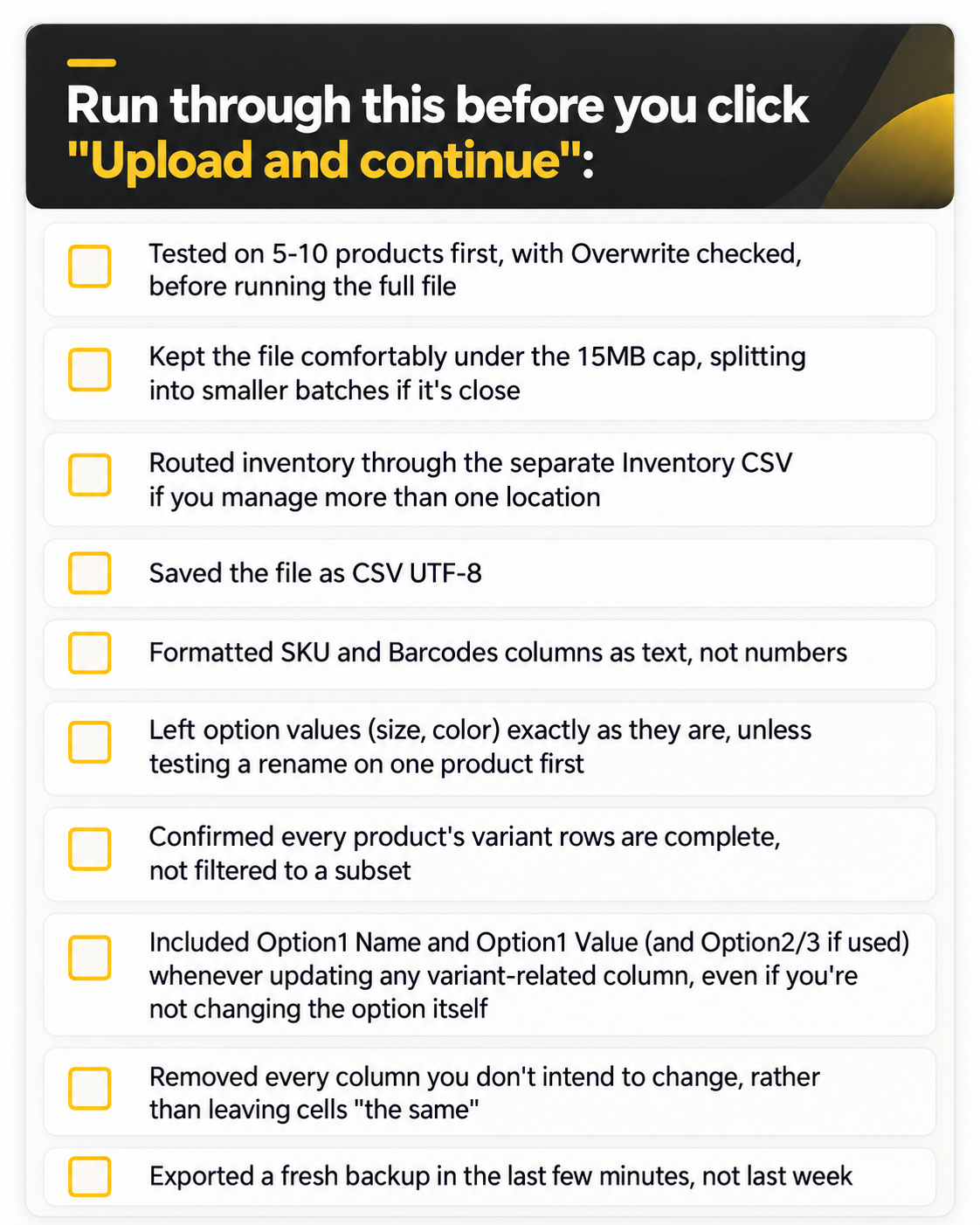
Pre-import checklist
Open the image, then right-click and choose “Save image as…”
What to do if an import already broke your store
If the damage is done, resist the urge to start manually rebuilding everything right away.
- Stop making further changes. Every additional edit makes it harder to tell what the original state was.
- Check for a recent export. If you grabbed a backup right before importing, as the checklist above recommends, you likely have most of what you lost sitting in a file already. Re-importing it with Overwrite checked can restore the bulk of it.
- Check order history for missing variant details. Even when a variant's live listing is gone, past orders often still reference its original SKU and options. This is useful for rebuilding manually if no backup exists.
- Look into a backup or version-history app. There's a category of apps built specifically to snapshot your catalog on a schedule, so an import like this doesn't cost you your only copy of the data. If nothing's running yet, this is a good time to set one up.
- Rebuild the highest-traffic products first, rather than trying to fix everything simultaneously.
There's currently no native "undo" for a completed import. Shopify's own support guidance is that it doesn't retroactively restore pre-import data. Prevention, via the checklist above, is the most reliable safeguard available for now.
When CSV stops scaling
CSV holds up fine for small, occasional updates. But past roughly 1,000 SKUs, or once more than one Shopify store is involved, or once more than one person on the team is touching product data, the export-edit-reimport cycle itself becomes the risk. Every pass is another chance for a blank cell or a missing row to quietly delete important data. At that point, acting more carefully with spreadsheets likely won’t cut it anymore, while not treating a spreadsheet as the system of record will. This is roughly where a dedicated PIM software like Toriut tends to take over the day-to-day workflow: it checks and maps a file before anything touches your live store, rather than trusting the file blindly the way native import does.
FAQ
Why does Shopify import show 0 in stock?
The most common reason is that you're managing inventory at more than one location and trying to set stock through the product CSV's Variant Inventory Qty column. In reality, that column only works for single-location stores. Use the separate Inventory CSV instead.
Can I undo a Shopify CSV import?
No, there's no native undo. Your best path back is re-importing a backup taken before the problematic import, or rebuilding affected products manually using order history as a reference.
Can I import metafields via CSV?
Yes, for product-level metafields, using the column format product.metafields.<namespace>.<key>. Variant-level metafields aren't supported via CSV and need the variant bulk editor instead.
What are the limitations of Shopify CSV import?
The main Shopify limitations: no native undo, no variant-level metafield support, multi-location inventory requiring a separate file, and the blank-cell-versus-omitted-column behavior that causes most accidental data loss. Files are also capped at 15MB, which can require multiple import batches for very large catalogs.
Is there a shopify csv template I should use?
Export your existing catalog and use that as your starting template rather than Shopify's generic sample file. It guarantees your headers and formatting already match what your store expects, including any custom metafield columns you've already set up.